Building LLMster: a native client for local models
How I built an iPhone and iPad app for LM Studio, from streaming Markdown and voice chat to scroll behavior and portable conversations.
By Dave Sebek

Using local models from a phone
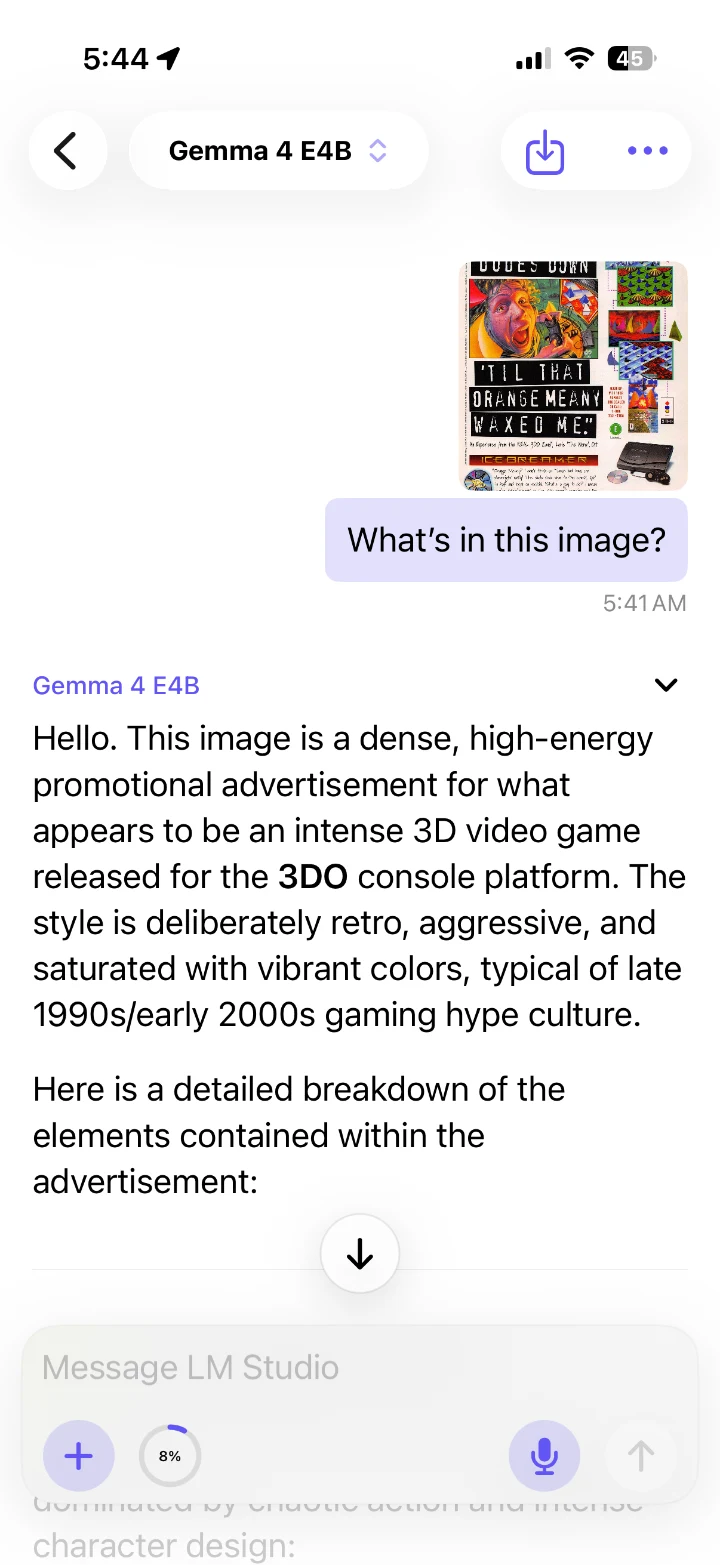
I built LLMster as a native iPhone and iPad client for LM Studio. The computer runs the model, and the phone provides the chat interface. You can choose a model, send a message or image, and read the response without sitting at the machine hosting it.
Much of the interface work was in the transcript: keeping text selectable, making room for the keyboard, and letting someone read an earlier paragraph while the response continued below it.
The app uses SwiftUI for the interface, SwiftData for local conversations and folders, and LM Studio’s REST API for model management and chat. It connects directly to the configured server. The model’s inference runs on that server, not on the iPhone.
Making the server understandable
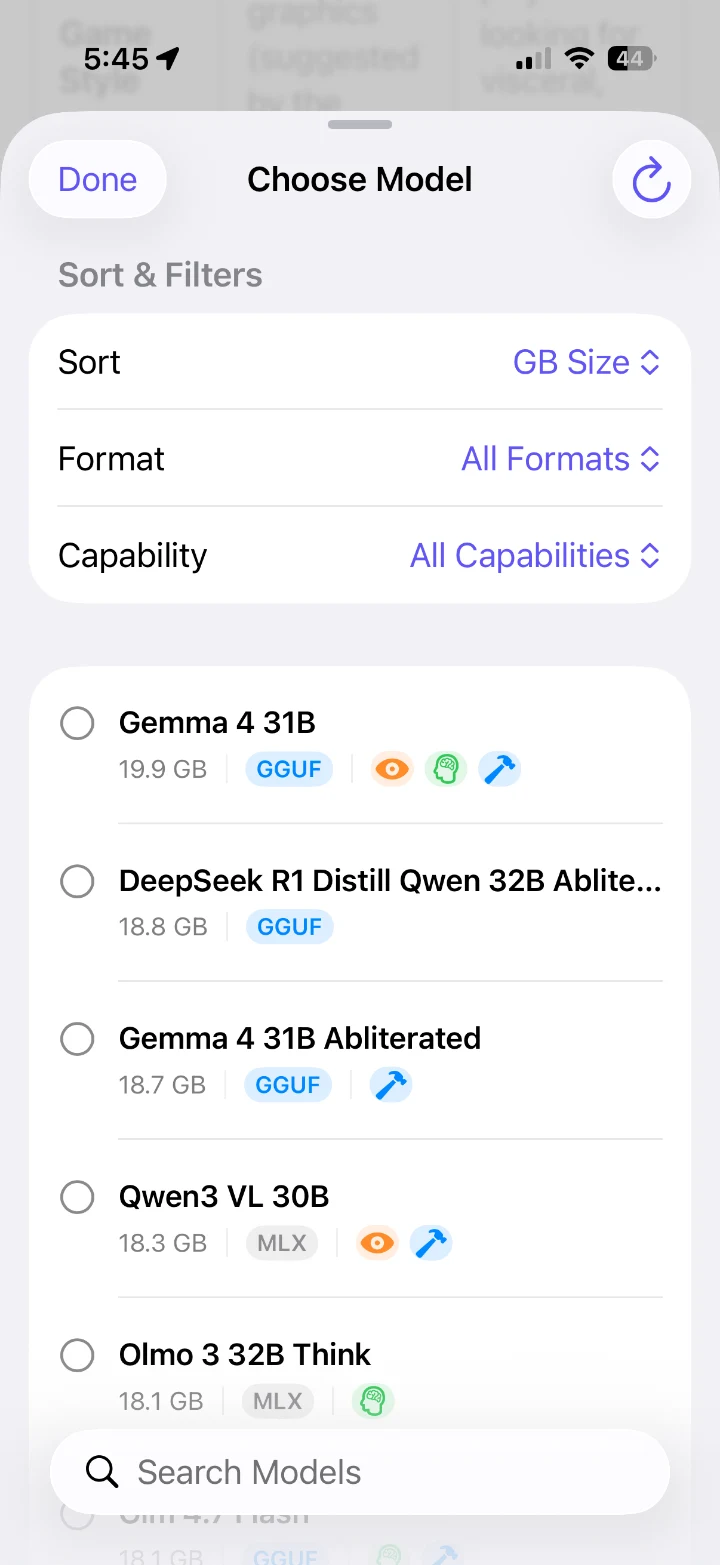
A model can be downloaded on the computer without being loaded into memory. A chat can also refer to a model that isn’t loaded anymore, so I show its loaded state in the picker before someone sends a message.
The picker also shows size, format, and the capabilities LM Studio reports. You can filter for vision, tools, or reasoning support and sort by size, format, or name.
Loading a different model has consequences for the computer’s memory and the other models it’s running. By default, LLMster unloads the previous chat model and duplicate instances of the selected model while preserving unrelated loaded models and the configured summarizer. A setting lets users keep previous chat models loaded instead.
The composer estimates context use from the loaded instance’s context length and the latest response statistics. It uses the configuration running on the server, which may have a smaller context than the model’s maximum.
Receiving a response in stages
While waiting for an answer, you might be waiting for a model to load, a prompt to be processed, or a tool to finish. LM Studio sends events for those stages, which LLMster displays alongside reasoning and response text.
The networking layer reads server-sent events from raw bytes. It preserves the blank lines that separate events and assembles data before decoding the payload. Network chunks don’t necessarily end at an event boundary, or even at the end of a UTF-8 character. The parser has to handle those boundaries without treating each arriving chunk as a complete message.
The chat controller applies the resulting events to the active response. Reasoning, answer text, and tool activity have separate presentation state. Tool calls retain their names, arguments, output, and status in the conversation, so their history doesn’t depend on whether an integration is still configured later.
LLMster waits for the final event before marking a response complete. If the stream stops early, it keeps the text it received and marks the reply incomplete.
Keeping streaming text responsive
Rendering every incoming fragment can make a long response increasingly expensive. Each update can trigger Markdown parsing and layout while the reader is also scrolling, selecting text, or using the composer.
I separated the raw incoming text from the snapshots published to the interface. I collect incoming text fragments, or deltas, in a Swift actor and combine routine display updates into one snapshot every 250 milliseconds, instead of redrawing for every fragment. The display stream keeps the latest pending snapshot, so the renderer doesn’t have to work through a queue of obsolete versions of the same response.
The app uses SwiftStreamingMarkdown to render the text. It prepares text for display off the main actor and keeps live text separate from the saved message until the response ends. Completion, cancellation, and errors each flush the remaining text.
Long reasoning output has another limit: the live preview shows the most recent 4,096 characters while the accumulator retains the full text. This limits the amount of reasoning being presented during generation without truncating the saved conversation.

Letting the reader control scrolling
Chat scrolling took several iterations. Opening a conversation, sending a prompt, following a response, and reading an earlier message each require different behavior.
When you send a message, LLMster positions the new assistant response at the top of the transcript. Temporary space below the response makes that possible before much text exists. As the reply grows, that space shrinks. The floating composer and keyboard also affect how much of the transcript is visible.
Manual scrolling cancels the response anchor. Optional automatic scrolling follows new output only while the transcript is pinned to the bottom; returning there or using the down-arrow button resumes that behavior. The scroll policy tracks these states explicitly so an incoming fragment doesn’t override the reader’s position.
During that work, I ran into a bug where scrolling back up after a reply finished could make it disappear. Leaving the chat and reopening it brought the text back.
The message hadn’t been lost. Stopping geometry tracking changed a conditional branch around the response view, causing SwiftUI to recreate the Markdown renderer. Its completed stream had already been consumed, so the new renderer had nothing to display. Reopening the conversation worked because it loaded the persisted text.
The fix kept the response view mounted and changed only the geometry-tracking background. A regression test checked that ending tracking didn’t recreate the content. It failed against the old implementation and passed with the fix.
Building voice conversations
On iPhone and iPad, the microphone starts a voice conversation using Apple’s on-device speech recognition. The app checks support for the current device and language. If on-device recognition isn’t available, voice chat stays off rather than falling back to network recognition.
A spoken turn is sent after 1.6 seconds of silence. A short chime and haptic cue signal when listening begins. Optional text-to-speech reads the response with an installed Apple voice, and listening resumes after the response and queued speech finish.
Speech also needs a different presentation of the answer. Reading a long identifier or a media URL aloud isn’t useful. The speech filter skips opaque IDs, hashes, emoji, and media resource URLs, and simplifies other URLs to their host names. The stored transcript keeps the original text.
The transcribed text goes to the LM Studio server for a response. Enabled server integrations may also contact external services.
Moving conversations between devices
I wanted to move a conversation from an iPhone to an iPad connected to the same LM Studio server. A shareable file provided a direct way to do that through AirDrop or the system share sheet.
LLMster stores the visible transcript locally, while LM Studio owns the server-side conversation context. A continuation ID connects the next request to that context. Copying the transcript alone doesn’t recreate the server’s state.
The .llmster format carries the conversation, attachments, configuration, and continuation metadata. The receiving device can continue against the corresponding server while that context remains available. If the endpoint differs, the app asks before proceeding. Sharing a conversation is an explicit transfer rather than automatic synchronization between devices.
Complete-library backups extend this to folders, pins, drafts, and the rest of the local chat library. Password protection is optional. Import validates the archive and shows a preview before asking the user to replace the local library.
The backup excludes the configured server URL, authentication credentials, Keychain data, and app-wide settings. LM Studio’s chat context stays on the server. After restoring a backup on a new device, you still need to configure the connection, and an old conversation’s server context may no longer be available.

Handling the app leaving the foreground
A phone app can’t assume it will remain on screen until a model finishes. LLMster uses iOS continued-processing background tasks for user-started responses, with finite background execution as a fallback.
The operating system still controls the available time. If it expires before the final chat event, the app preserves the partial response and can notify the user that it’s incomplete. Successful background completions can produce a local notification with the model name and a response preview.
Taking the conversation away from the desk
The computer still does the model work, but the conversation can happen on an iPhone or iPad connected to it. You can read at your own pace, dictate the next question, and transfer the chat to another device when you want more room.
You can find the app at llmster.app.
- SwiftUI
- Local AI
- Streaming
- Interaction design
- iOS